Enemy Detection
Manage the enemy results view
Project managers can customize how enemy detection results are displayed. By default, all new projects and projects with enemy detection newly enabled will display only the item IDs and the default similarity index (StemAndKey-StemAndKey).
Manage results view
Choose which columns will be included in the enemy results table.
|
|

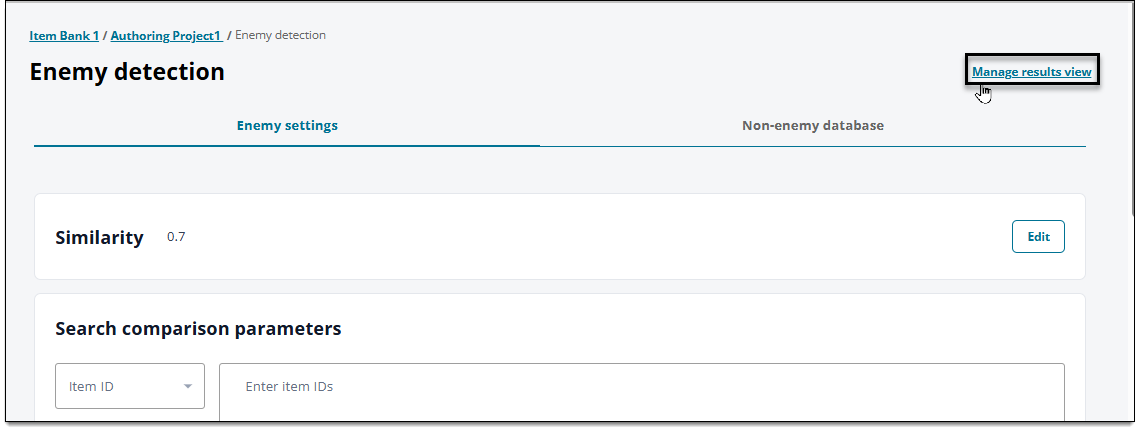
- On the Enemy detection page, click Manage results view in the upper-right corner.
- Click and drag columns from the Available Columns list to the Selected Columns list to add them to the view. Or, find a specific column by typing its name in the search bar. See column descriptions ↓ for more details on each column.
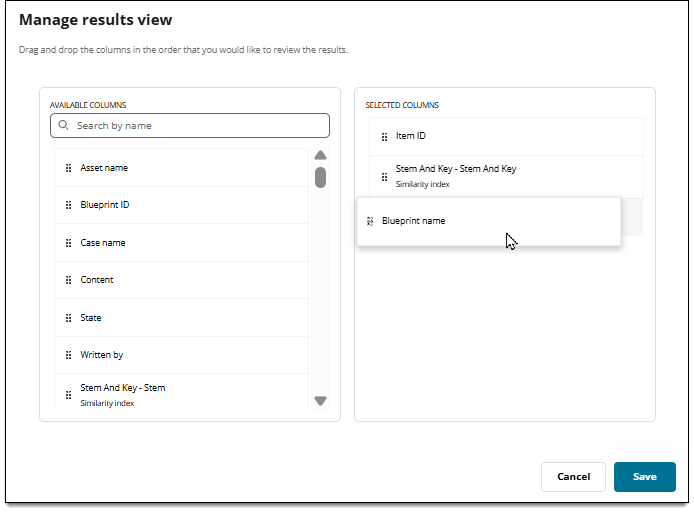
- To reorder a column, click the
 for the column and move it up or down in the list. The order of columns from top to bottom in this list will be displayed as the left-to-right order of columns on the Search page.
- Click Save.
Column descriptions
- Asset name: the ID of an asset used in an item, including images, PDFs, and media. If more than one asset is used, a comma-separated list of all assets used within the content components, options, and/or tokens/targets of the item are displayed.
 Assets used as background images in Drag and drop items are included in the list.
- Assets used in comments or metadata are not included in the list.
- Blueprint ID: displays the ID of the blueprint area applied to each item (shows the numerical portion of a blueprint area, such as "1" or "1.1").
- Up to five levels of nested blueprint levels will be shown.
- Blueprint name: displays the name of the blueprint area applied to each item (shows the named portion of a blueprint area, such as "Fruits" or "Apples").
- Up to 30 characters of the blueprint name will be displayed on the search results page; additional characters won't be visible unless exported.
- Case name: displays the name of the case that each item is part of (if applicable).
- Content: displays the content of each item, including the question and responses. If needed, you can hover your mouse pointer over the content preview for an item to display more content.
- Up to 100 characters of the item content will be displayed on the search results page; additional characters won't be visible unless exported.
- Metadata fields: Displays any metadata applied to an item. (Metadata are the optional customized fields configured for the item bank). All metadata fields configured for a project are available as separate columns. Column header labels will match the metadata name. For example, if your project has a dropdown list metadata field named "Cognitive level", you'll see "Cognitive level" as a column option with a marker to indicate it's a metadata field. Both editable and viewable metadata will be shown.
- Up to 40 characters of the applied metadata will be displayed on the search results page; additional characters won't be visible unless exported.
- Stem and Key - Stem and Key: Displays the value of the "Stem and Key" similarity index (cosine) for each item pair. This is the primary type of cosine that is evaluated in enemy checks and is shown in the results table by default. (The Stem and Key of Item 1 is compared against the Stem and Key of Item 2.)
- You can add additional parameters to be evaluated and shown as values for each item pair in the enemy results table. The parameter before the hyphen corresponds to Item 1 and the parameter after the hyphen corresponds to Item 2. For example, StemAndKey-Options shows the similarity index for the Stem and Key of item 1 compared against the Options of item 2, and the Stem and Key of item 2 against the Options of item 1. View all similarity parametersView all similarity parameters
Terms for reference:
- "Stem" = the text content components of item
- "Key" = the option marked as correct
- "Options" = refers to all of the options defined for an item
- "Blueprint" = the classification of the item (Example: Domain and Task )
- "State" = the ExamDeveloper state assigned to the item (Examples: Completed, Review)
- "Metadata" = optional customized fields configured for the item bank (all configured metadata fields will be evaluated for each item)
List of additional similarity parameters
- Stem and Key – Stem
- Stem and Key – Options
- Stem and Key – Key
- Stem and Key – Key
- Stem and Key – Blueprint
- Stem and Key –State
- Stem – Stem and Key
- Stem – Stem
- Stem – Options
- Stem – Key
- Stem – Blueprint
- Stem – Metadata
- Stem – State
- Options – Stem and Key
- Options – Stem
- Options – Options
- Options – Key
- Options – Blueprint
- Options – Metadata
- Options – State
- Key – Stem and key
- Key – Stem
- Key – Options
- Key – Key
- Key – Blueprint
- Key – Metadata
- Key – State
- Blueprint – Stem and Key
- Blueprint – Stem
- Blueprint – Options
- Blueprint – Key
- Blueprint – Blueprint
- Blueprint – Metadata
- Blueprint – State
- Metadata – Stem and Key
- Metadata – Stem
- Metadata – Options
- Metadata – Key
- Metadata – Blueprint
- Metadata – Metadata
- Metadata – State
- Stem and Options – Stem and Options
- State – Stem and Key
- State – Stem
- State – Options
- State – Key
- State – Blueprint
- State – Metadata
- State - State
- "Stem" = the text content components of item
- State: each item’s status in ExamDeveloper (Completed, Draft, Imported, Obsolete, Returned, Review, Validate).
- Written By: the ExamDeveloper user who created the original version of each item.
Pearson Proprietary and Confidential